
The Events content type has its own set of purpose-built blocks. Instead of manually building each event page in the block editor, editors fill in an event’s fields once — Date & Time, Location, Registration & Cost, Recap, Promo Image, and Partners — and the corresponding blocks automatically display that information wherever they’re placed on the Single Event template.
Most of the time you won’t need to touch these blocks directly. Fill in the fields on the event, and the page updates on its own.
Making changes to the Events configuration? See the Events Developer’s Guide.
Event Fields
When you create or edit an Event, you’ll see these field groups:
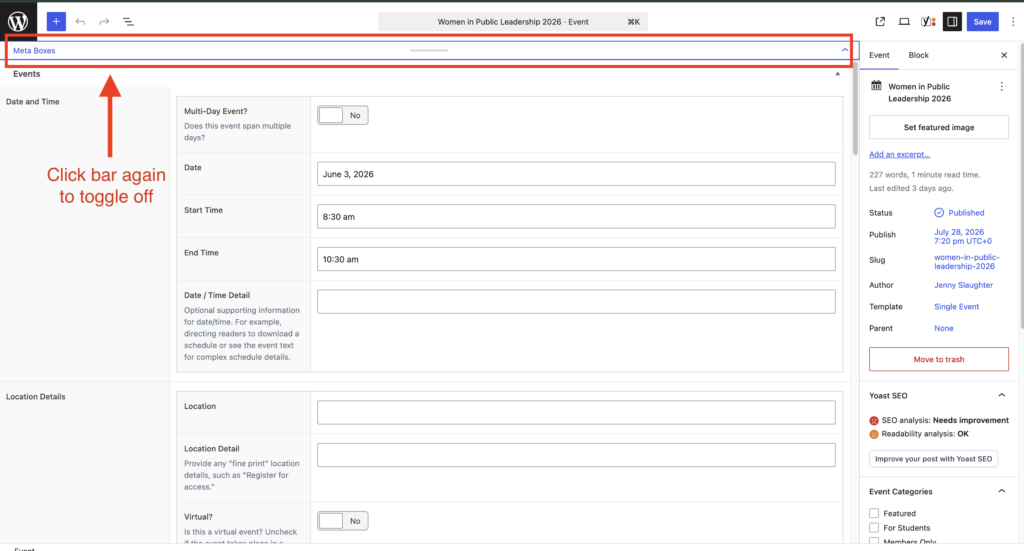
- Date and Time — Whether the event runs one day or several, the date(s), start/end time, and any extra scheduling detail (e.g. “doors open 30 minutes early”).
- Location Details — The location name, an optional detail line, whether the event is virtual, the full address, and a Google Maps link.
- Registration and Cost — Whether the event is free, a cost amount, cost detail, and one or more Calls to Action (buttons like “Register Now” that link out to registration).
- Recap — A post-event summary, photos, and downloadable documents. See Event Recap below for when this appears.
- Promo Image — An optional flyer or social image for the event.
- Partners — Any partner organizations associated with the event, pulled from the Partners content type.
You’ll also want to tag events with Event Type, Event Series, and Event Category where applicable — these power the automatic labeling and related-events features described below.
Editing Event Fields
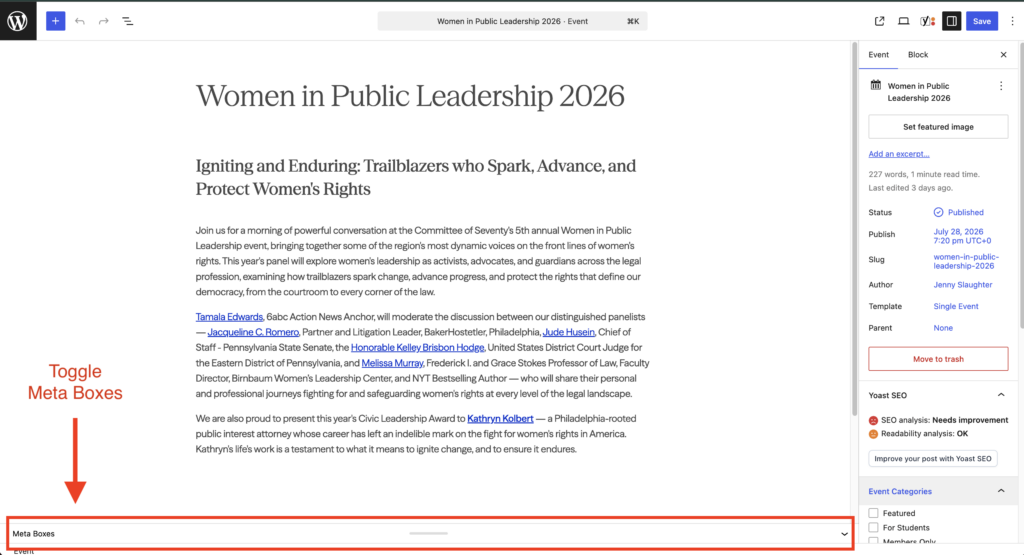
When you open an Event with Show Template turned on, the editor shows a live preview of the Date, Location, Registration, Recap, and other blocks already filled in with that event’s information. This is a preview only — clicking into it won’t let you change the values.
To actually edit these fields, scroll down below the main content editing area. You’ll find them in a panel underneath the content editor — the same panel where the Yoast SEO settings for the page live. Update the fields there, and the preview above updates to match once saved.
Sorting Event Lists by Date
If you’ve added a Query Loop block to show a list of Events, you can control which ones appear — and in what order — using a special class:
- To show only upcoming events, soonest first: add
seventy__query-events-upcoming - To show only past events, most recent first: add
seventy__query-events-ended
Where and how to add it:
- Click the Query Loop block to select it (the outer block — not “Post Template,” which is nested inside it).
- If the right-hand Settings sidebar isn’t open, click the ⚙️ gear icon in the top-right toolbar to open it.
- In that sidebar, click Advanced to expand it (it’s collapsed by default, near the bottom).
- Type the class name into the Additional CSS Class(es) field.
Without one of these two classes, the list falls back to WordPress’s normal sorting.
Event Blocks
You can find these blocks in the Block Inserter under the “Seventy Events” category.
Event Meta
Automatically displays an event’s Event Type, Event Series, and Event Category tags as clickable links, plus an “Event Ended” label once the event’s date has passed. You don’t need to add this label yourself — it’s calculated from the Date and Time field.
If an Event Category is marked Featured for internal/backend use, it’s automatically hidden from this display — Featured is never shown to site visitors.
Event Date
Displays the full Date and Time information: a single date or date range, start/end time, and any extra detail text you’ve entered.
Event Location
Displays the location name, detail line, and address. If Virtual? is checked, the address and map link are replaced with a “Virtual Event” label instead. If a Google Maps link is provided, an “Open in Google Maps” button appears (opens in a new tab).
The Location Address field supports line breaks — press Enter to separate the street address from the city/state/zip, and it will display on separate lines.
Event Cost & Registration
Displays whether the event is free, any cost information, and the registration button(s) you’ve added under Calls to Action. You can add more than one Call to Action if there are multiple ways to register (for example, separate links for members and the general public).
Event Recap
Meant for use after an event has happened. Once the event’s date has passed, this block shows the Recap Summary, a photo gallery, and any Documents & Resources you’ve attached.
Before the event happens, this block normally shows nothing. If you’d like documents (like an agenda or handout) to be available to visitors before the event, check Preload Attachments? on the Recap field — only the Documents & Resources section will appear early; photos and the summary still wait until after the event.
The photo gallery can pull from two places at once — individual photos added under Images, and/or a folder of photos selected under Gallery (from the media library’s folder organization). Either or both can be used.
Event Promo Image
Displays the event’s Promo Image, if one has been uploaded. When enabled by your developer, a “Download this image to share” button appears below the image, useful for flyers meant to be shared by partners or attendees.
Event Partners
Displays a grid of the event’s partner organizations. Each partner shows its logo (linking to the partner’s website, if one is provided) or, if no logo has been uploaded, its name as a link or plain text. This section is hidden entirely if no partners are added.
Similar Events
Automatically finds and displays three related events at the bottom of an event page — no manual setup required beyond tagging events with a Series and/or Type.
How events are chosen, in order:
- Same Series — Events tagged with the same Event Series as the current event are shown first.
- Same Type — If there aren’t three Series matches, the block fills any remaining spots with events that share the same Event Type.
- Any upcoming event — If Series and Type together still don’t add up to three, the block fills the rest with any other upcoming event on the site, soonest first.
- Most recently ended events — If there still aren’t three (for example, no upcoming events exist), the block fills in with the most recently ended events instead.
Within every step above, upcoming events are always preferred over past ones. For example, if only one upcoming event shares a Series with the current event, the block shows that one event plus the two most recently ended events to round out the three.
As long as there are at least three other Events published on the site, this block will always show three — it never displays fewer just because a specific event has no tagged Series or Type in common with anything else.
Event Category is not used to find similar events — only Series and Type factor into the match.